

Running social media for a small business while also running the actual business is one of those tasks that sounds manageable until you are in the middle of it. You need fresh content constantly. It needs to look polished enough to compete with brands that have entire creative teams. CapCut’s online video editor gives small businesses a professional editing workspace in the browser, no installation needed, no technical background required.
Instead of spending hours learning complex software, business owners can focus on creating content that actually connects with customers. Templates, auto captions, transitions, and drag-and-drop editing make it possible to produce videos quickly without sacrificing quality. This matters because consistency is what keeps a brand visible on platforms driven by fast-moving algorithms. A local café, clothing store, fitness coach, or e-commerce startup can create promotional clips, product showcases, customer testimonials, and short-form ads from a single dashboard. When the editing process becomes simpler, small brands can publish more often, test more creative ideas, and compete more effectively for attention online.
Why Most Small Brand Social Content Looks Amateurish
It is rarely the camera quality that makes content look unprofessional. Modern smartphones shoot footage that would have required a professional camera five years ago. What makes most small brand content look unpolished is the background. A cluttered desk, a messy stockroom, a distracting home environment behind the person speaking. Viewers register the background before they process anything the person on screen is saying, and a chaotic background immediately undercuts the credibility of the message.
The practical solution is background removal. When you can cleanly separate your subject from whatever is behind them, you control the entire visual impression of your content. Beyond video, your image content needs the same intentional treatment. CapCut’s online photo editor lets you remove and replace backgrounds on product photos, enhance image quality, and apply consistent filters so your feed looks cohesive regardless of where and how each photo was taken.
The Visual Consistency That Makes Brands Look Premium
What makes a brand look cohesive on social media is consistency across every piece of content. Consistent colors, consistent fonts, consistent framing. Once you have nailed your visual treatment for video and images, do not forget the content already locked inside your recordings. If your video includes a strong product walkthrough, a tip, or a customer story, you can extract audio from video and reuse it as a podcast segment, a narration track, or a standalone audio clip. One recording session covers multiple formats and platforms.
How to Remove Video Backgrounds in CapCut: A Step-by-Step Guide
CapCut’s background removal feature lives inside the video editor. Go to capcut.com, click Try Online, and sign in or create a free account.
Step 1: Upload Your Footage and Select the Clip
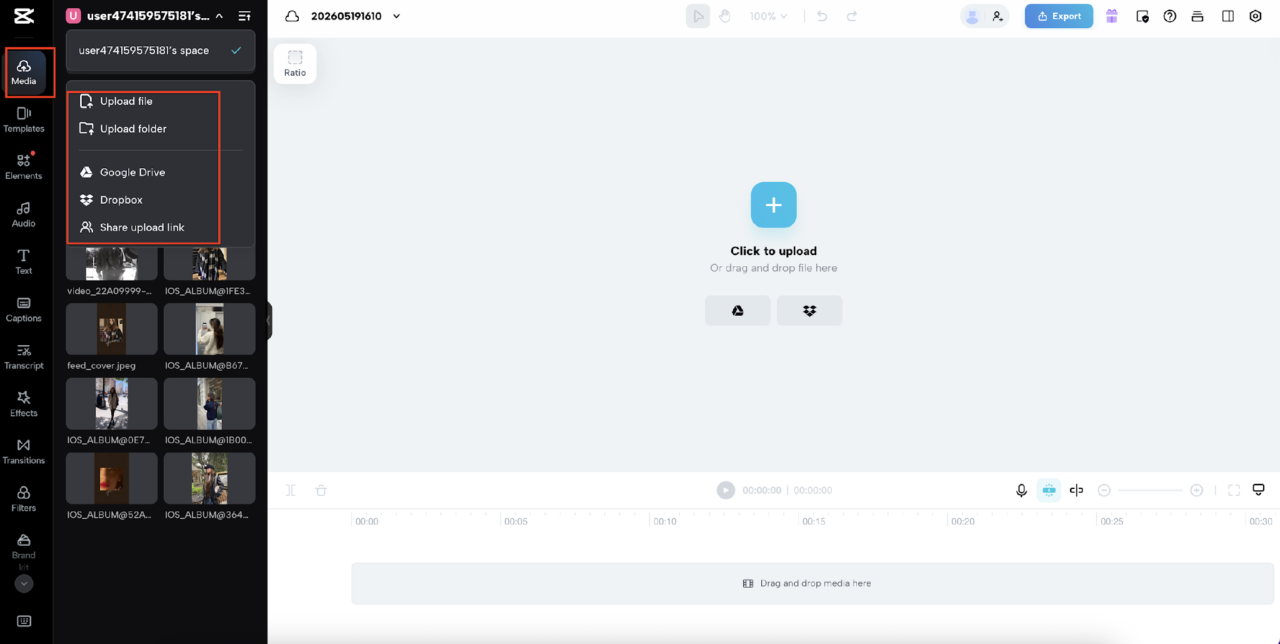
On the left-hand panel, click the Media icon at the top. A dropdown menu will appear showing five upload options: Upload file, Upload folder, Google Drive, Dropbox, and Share upload link. Click Upload file to open your file browser and select the video clip from your device. Once uploaded, your file will appear in the media library on the left. Drag it down onto the timeline at the bottom of the screen, or click the plus icon in the center canvas area where it says Click to upload.
Step 2: Apply AI Background Removal
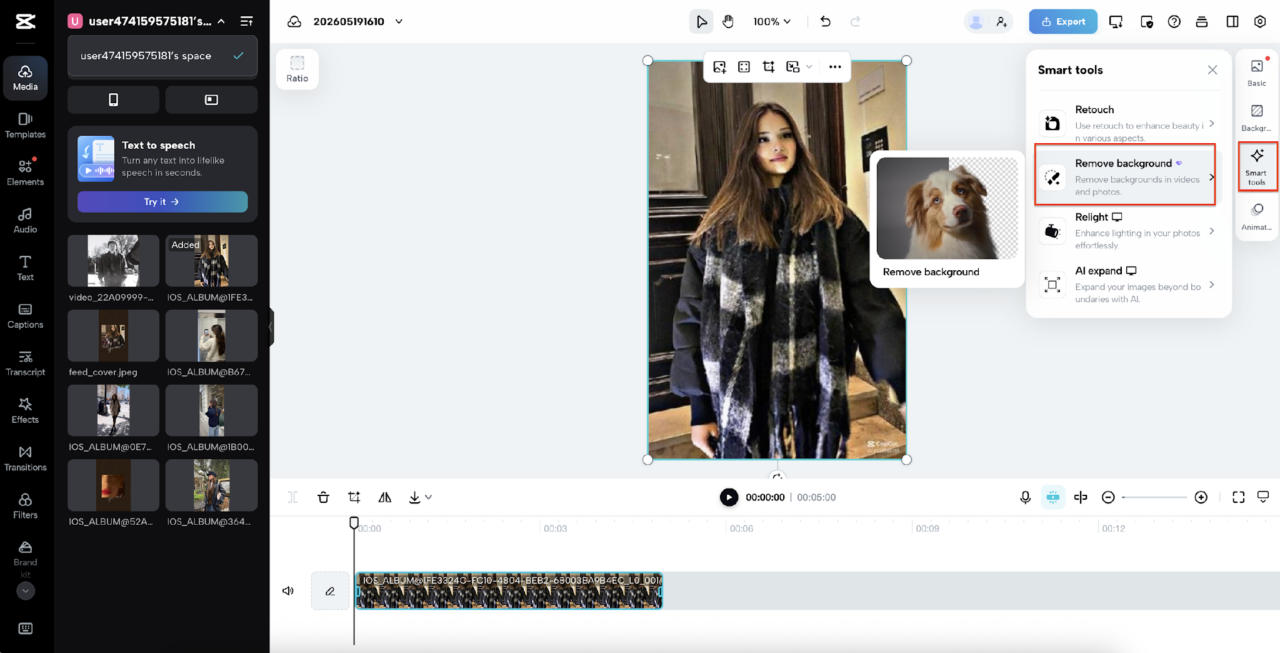
With your clip on the timeline, click on it to select it. On the right-hand side of the screen, click the Smart tools tab. A panel will open showing several AI-powered options including Retouch, Remove background, Relight, and AI expand. Click Remove background.
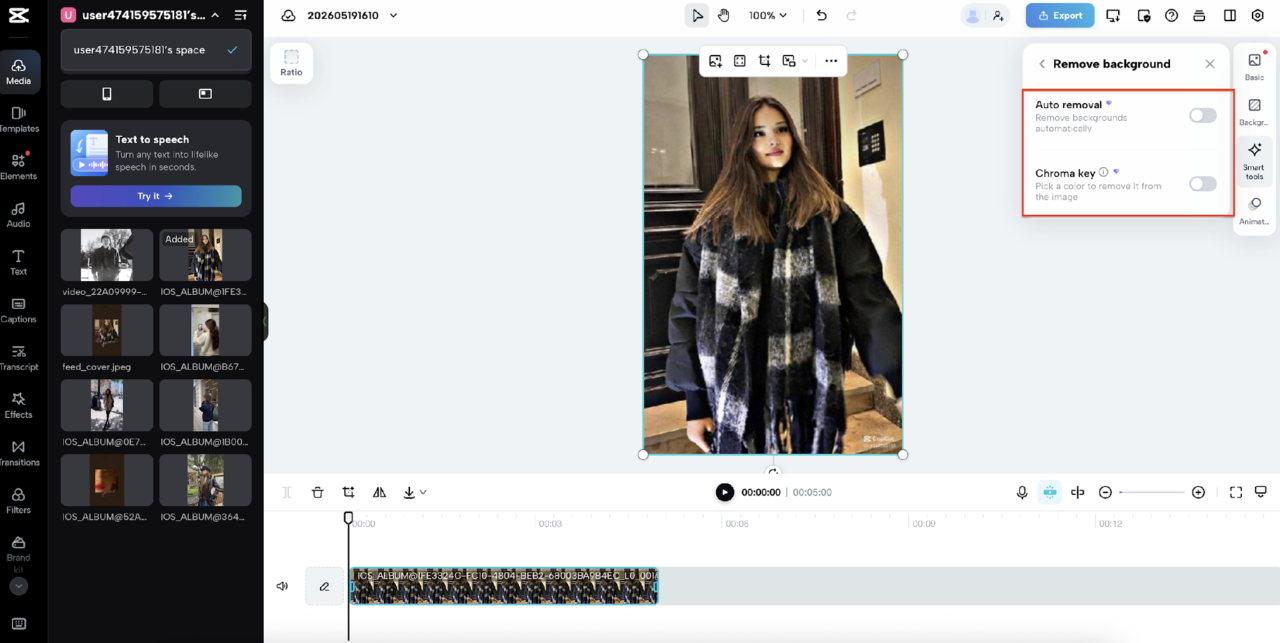
The Remove background panel will open, showing two options: Auto removal, which removes backgrounds automatically, and Chroma key, which lets you pick a specific color to remove from the image. Toggle on Auto removal. CapCut’s AI will process your clip and remove the background instantly, leaving your subject cleanly isolated as shown in the canvas preview.
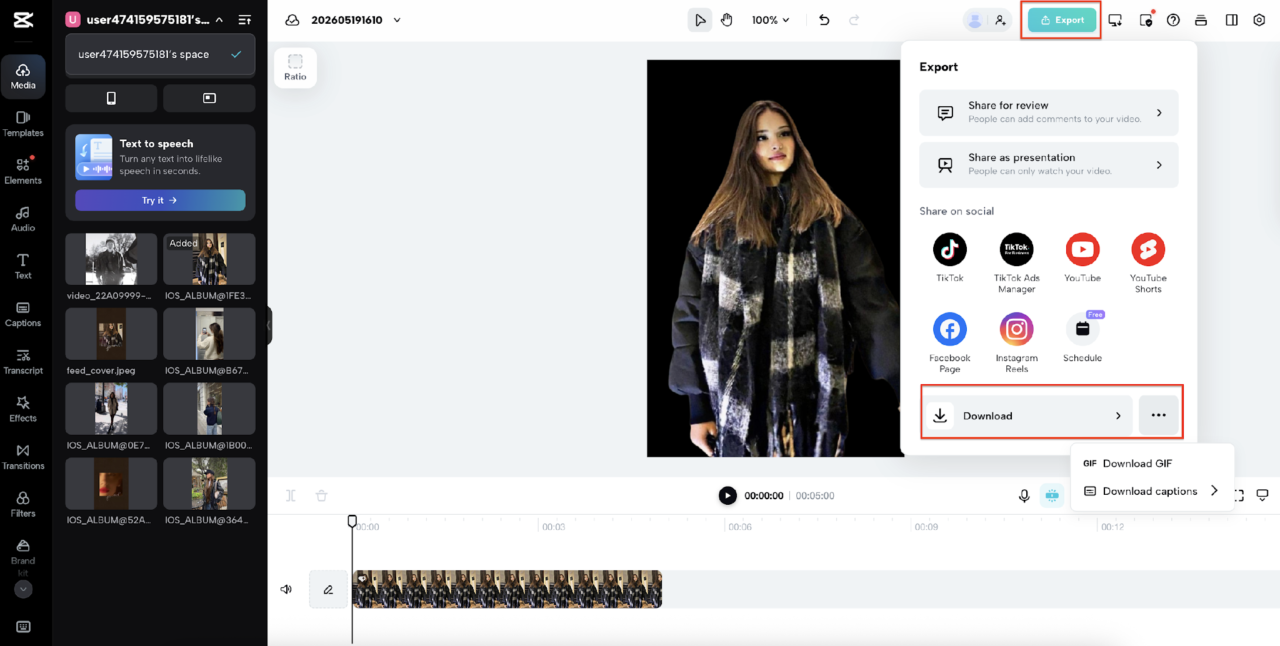
Step 3: Export The Video
When you are happy with the result, click the Export button in the top right corner of the screen. The Export panel opens on the right side showing several sharing options. You can Share for review so others can leave comments, Share as presentation for view-only access, or share directly to social platforms including TikTok, TikTok Ads Manager, YouTube, YouTube Shorts, Facebook Page, Instagram Reels, and Schedule. To save the file to your device, click Download. You will also see options to Download GIF and Download captions at the bottom of the panel.
Consistency Over Perfection, Every Time
The brands that win on social media long term are almost never the ones with the single most impressive post. They are the ones that show up most consistently over the longest period. A clean video with a solid background color published every week will always outperform a stunning studio-produced video published once every two months.
Build a workflow that you can actually maintain. Use background removal to make every video look intentional regardless of where you shot it. Let consistency do what money alone cannot buy. Small improvements made repeatedly compound into something significant over time. A background that looked slightly off last month looks polished this month because you kept showing up and refining your process. That is how brands build trust without a production budget behind them.